


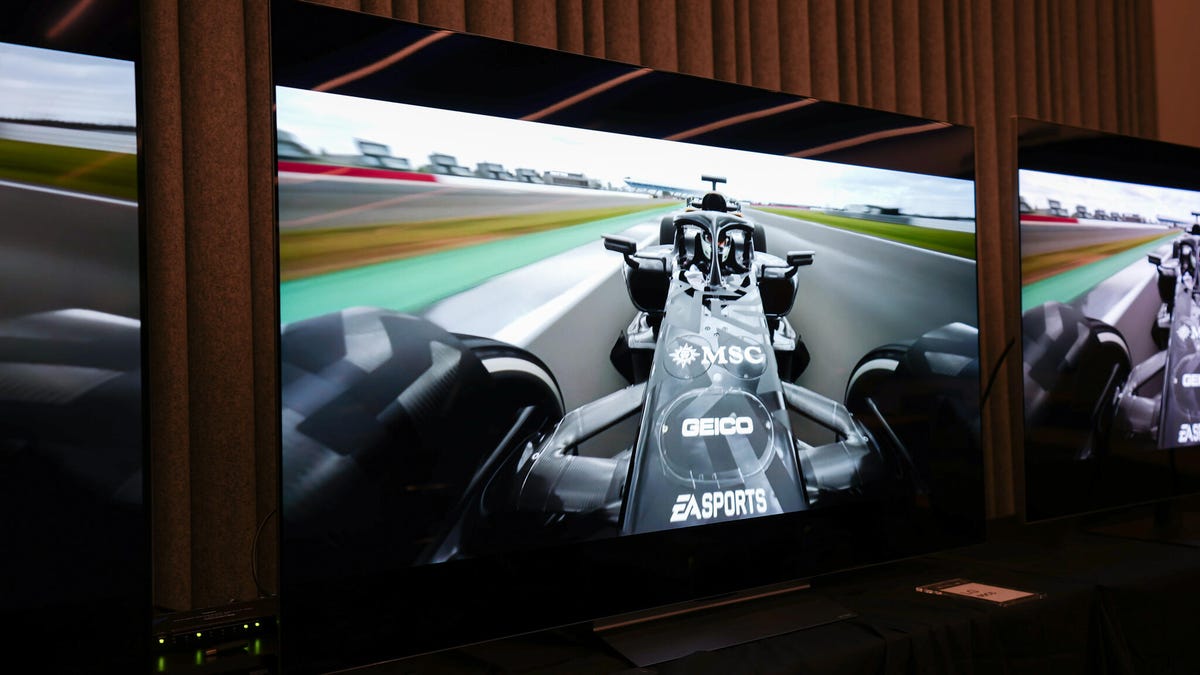
Why You Should Disable Your TV's Default Setting Immediately
Many television viewers find motion smoothing suitable mainly for sports and gaming. Most cinephiles prefer to deactivate it when watching movies or shows, as it can create a synthetic visual effect that's often deemed distracting. This phenomenon, commonly known as the 'soap opera effect,' detracts from the authentic viewing experience intended by filmmakers.
Think of it this way: a high-budget film shouldn't mimic the cheap feel of a daytime drama, making you feel as though you're right there on set. However, when experiencing the ambiance of a live sports event, such as feeling the excitement of a packed stadium, motion smoothing can be advantageous.
Steps to Disable Motion Smoothing (And Why It's Beneficial)
TV manufacturers often label motion smoothing differently, sometimes as 'motion interpolation.' Here's a basic guide to navigating your TV settings to disable it once you've had enough of heightened action scenes.
Most smart TVs have a 'Picture Settings' section where features containing the word 'motion' are found. Once located, follow these instructions to turn off motion interpolation on various television models.
Samsung TV
Samsung TVs refer to motion smoothing as 'Auto Motion Plus.' To deactivate, press the settings button on your remote, navigate to the picture options, and find the menu to disable this function.
LG TV
On LG televisions, this feature is named 'TruMotion.' Press the settings button, then look for the settings icon represented by three dots. Continue navigating to adjust and turn off the motion feature.
Amazon Fire TV (Amazon, Toshiba)
Referred to as 'Action Smoothing' on Amazon Fire TVs, use your remote's settings button to initiate changes through the menu and disable the feature.
Google TV (Sony, TCL, Hisense)
The setting varies slightly among Google TV models, but begins with pressing the settings. From there, adjust the function accordingly; it might be labeled differently for specific brands.
Vizio TV
Vizio labels motion smoothing as 'Clear Action.' Access the TV settings using the remote settings button to make the necessary adjustment.
Roku TV (Element, Hisense, RCA, Sharp, TCL)
Roku TV models require you to open an input or application first, then hit the asterisk (*) button on your remote. Navigate the options, as 'motion smoothing' may have varying names, or be located under different picture settings.
One Key Reason to Keep Motion Smoothing Active
Motion smoothing significantly benefits scenarios where rapid motion needs clarity, such as fast-paced sports or intense video games. By generating extra frames in the video output, it mitigates motion blur, delivering sharper visuals during swift camera pans or rapid action.
Implementing interpolated frames improves visual fluidity by boosting the frame rate from the typical 24 frames per second to 60 or even 120 FPS. However, for any other TV viewing, disabling this feature is advisable.
Leave a Reply