


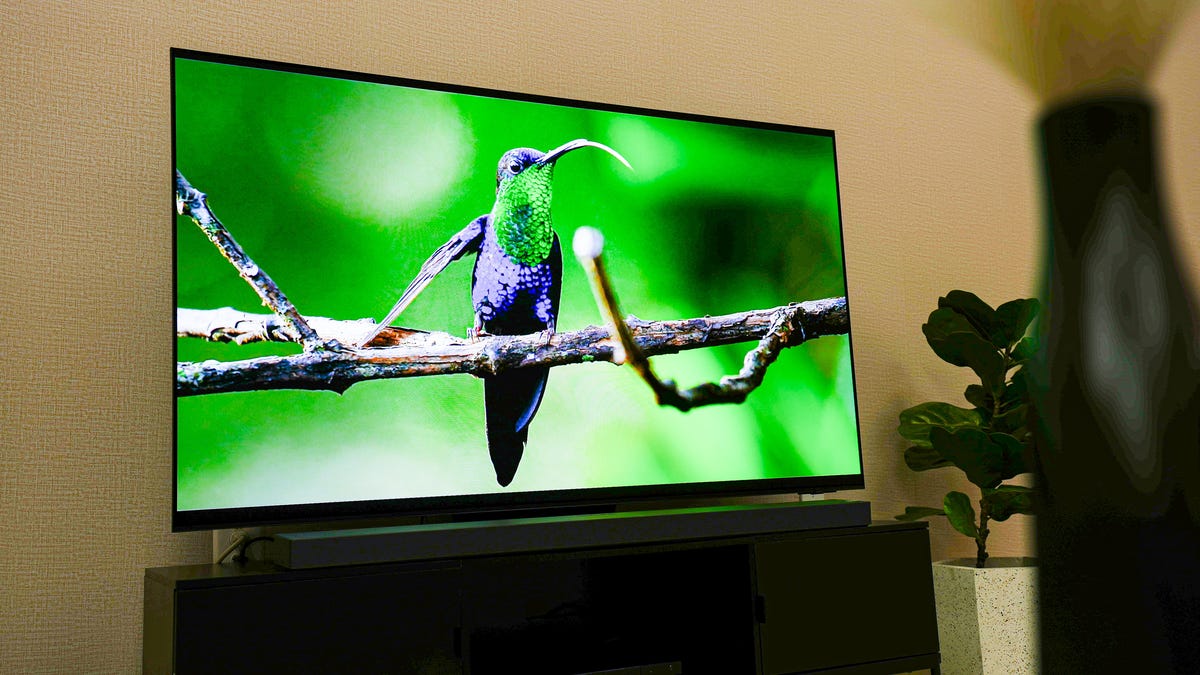
Enhancing Samsung TV Experience with Six Essential Settings Adjustments
Unveiling a brand-new television is an exciting moment—a bit like unwrapping gifts during the holidays. Wandering into 2025, you might assume all high-tech TVs will deliver stunning visuals right out of the box. Yet, relying solely on factory settings can be a misstep.
Most consumers, myself included, might not bother with tweaking the default configurations, assuming they’re good enough. However, even if your Samsung TV isn't the latest model, altering those initial settings can breathe new life into your viewing experience.
1. Disable Eco Mode to Boost Picture Quality
Typically, TVs come preset with an 'Eco Mode' that aims to cut down on power usage by dimming the screen and lowering contrast. While this can save a mere $7 annually on electricity, the visual compromise isn't worth it. Navigate to Settings using your remote: All Settings > General and Privacy > Power and Energy Saving > Energy Saving Solution, and turn this feature off.
2. Deactivate Brightness Optimization
For a consistent display quality, disable Brightness Optimization, found under Power and Energy Saving. This option—designed to adjust screen brightness based on room lighting—often fails in unstable light conditions, such as cloudy days, which can ultimately reduce viewing pleasure.
3. Opt for a Viewing Mode Tailored to Movies
For authentic color representation, select Movie, Cinema, or Filmmaker Mode. These configurations minimize extraneous processing and offer a true-to-life depiction. Go through: All Settings > Picture Mode and choose the one that best resonates with you.
Standard settings generally skew towards cooler tones, while options like Dynamic (or Vivid) can excessively amplify colors, creating an unnatural glare often favored for showroom displays.
4. Tweak Brightness Levels for Optimal Comfort
Brightness adjustments should be tailored to both standard and high dynamic range content. For SDR, navigate to All Settings > Picture > Expert Settings > Brightness and adjust according to personal tastes with apps like Prime open but paused.
For HDR adjustments, play HDR content on platforms like YouTube TV to tweak visibility effectively. While HDR commonly requires maxed-out brightness, SDR might benefit from a more subdued setting.
5. Play with Local Dimming Options
Explore Local Dimming settings—Low, Standard, High—under All Settings > Picture > Expert Settings > Local Dimming. Adjusting this can impact backlighting and glare, with higher settings generally enhancing bright spots against dark backdrops without overspilling light.
6. Switch Off Motion Smoothing for a Filmic Experience
Films shot at 24 frames per second may fall victim to Motion Smoothing, commonly known for producing a glossy soap opera effect. While this setting can help in sports by reducing blur, it's best turned off for a genuine cinematic feel.
Access this through All Settings > Picture > Expert Settings > Picture Clarity Settings and disable it, or customize Blur and Judder Reduction as necessary.
Regardless of your TV's age, a few thoughtful adjustments can transform it into a powerhouse of immersive visuals. Take these steps to enhance your viewing adventures.
Leave a Reply