


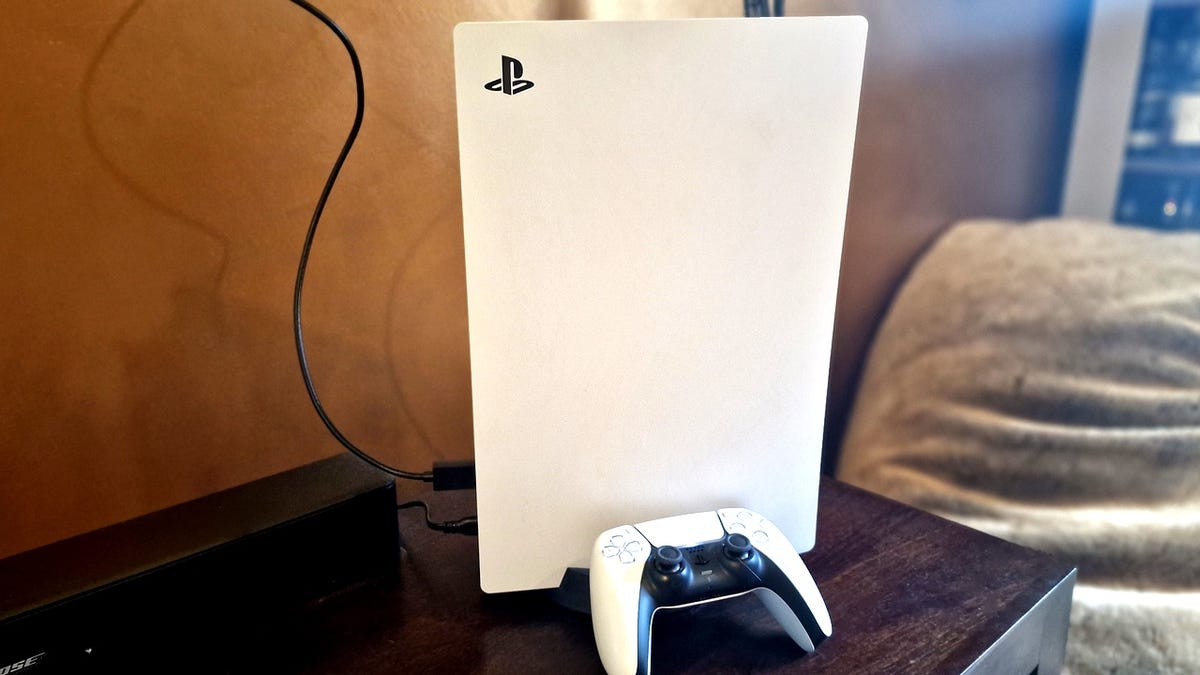
Enhancing Your PS5 Experience with Three Simple Tweaks
While I'm not the most intense gamer around, my PlayStation is a crucial part of my leisure time. It enables me to enjoy top-tier streaming and gaming experiences without the clutter of traditional cable. However, I've discovered that a few simple setting adjustments can greatly improve how I use my PS5.
Maximizing the DualSense Controller's Standby Time
A frequent issue users face is the limited battery life of the PS5 DualSense controller when unplugged. By tweaking a few settings, you can prolong its wireless performance. You can enable various options by accessing the settings gear icon at the screen's top-right corner, then selecting Controller, and finally configuring Battery Settings.
For more efficiency, navigate to Vibration and Trigger Effects settings and move both from Standard to Reduced. If you're willing to minimize feedback, you can completely switch them off. Adjust the slider for Vibration Intensity to a lower level to save more power. When not using the controller for games, change settings to avoid unnecessary power consumption.
Enhancing Visual Output for Gaming and Media
Owners of TVs with VRR, 120Hz refresh rates, and ALLM should consider activating these features. The Variable Refresh Rate synchronizes the TV's and game's refresh rates for a seamless visual experience, while ALLM minimizes latency for immediate controller response.
You can enable these by going to Video Output Settings and selecting options like 120Hz Mode and VRR. Ensure your HDMI is compatible by checking the console's notification during the setup.
For optimum picture quality, enable HDR and run the Calibration Wizard to adjust color and brightness until on-screen images are just visible. Additional adjustments in this section ensure an optimal experience.
Maintaining Privacy and Data Security
Your PS5 settings can be tailored to protect your privacy online. Customize accessibility so only selected users can view your profile and status.
In settings, navigate to Privacy Settings to restrict visibility of personal information, ensuring minimal exposure of your gaming history and personal details. It's advisable to choose between Friends Only or No One for most settings to minimize unwanted interruptions.
Limit the data Sony collects through your controller's microphone by accessing Data Collection Preferences and adjusting settings to limit or turn off data collection altogether. Prioritize options that limit personal data sharing to enhance your security.
Final Thoughts
The PS5 offers myriad settings that can be adjusted to fit your preferences and enhance your overall experience. By investing a little time in exploring these configurations, you can significantly improve both your entertainment and privacy on this console.
Although numerous settings can be configured, these three areas are vital for maximizing your console's utility while safeguarding personal data.
Leave a Reply