


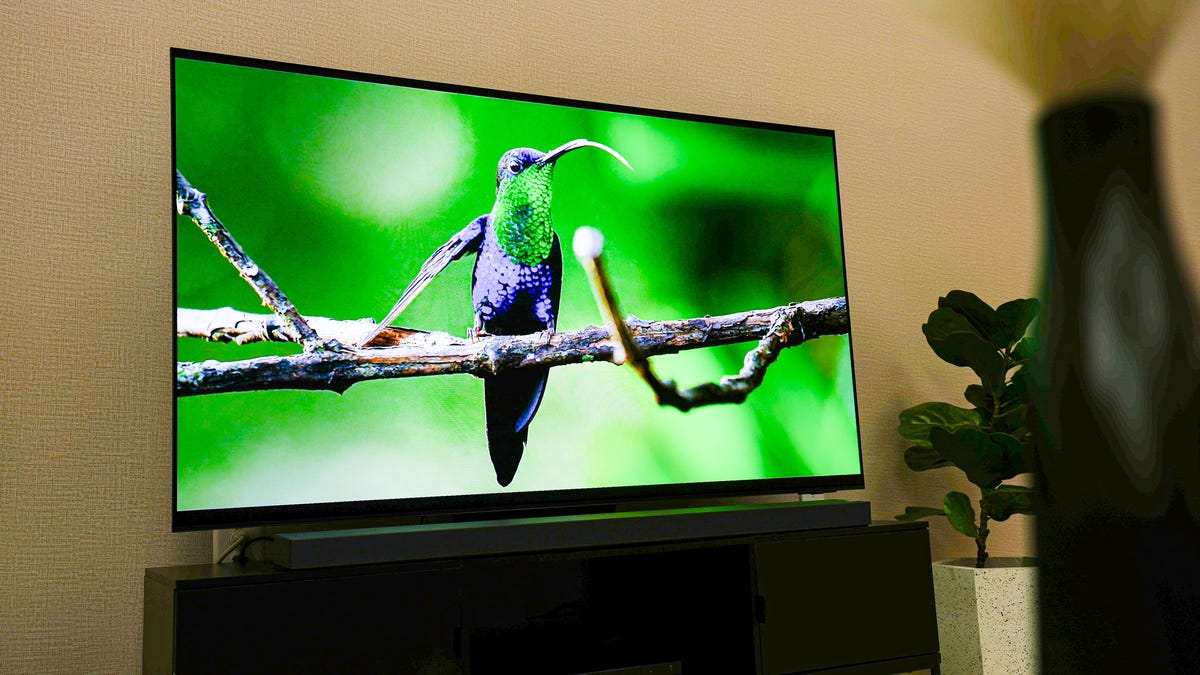
Boost Your Samsung TV's Performance by Changing These 6 Settings
Imagine unboxing your brand-new TV, full of excitement to experience its stunning display. You might assume, 'It's 2025, the picture quality will naturally be incredible.' But if you stick to the factory settings, you're missing out.
I've made this mistake myself, and it's not uncommon. Most people never tweak the basic settings on their TVs even though doing so, especially if you own a Samsung model, can significantly enhance your viewing experience.
Here are six adjustments you can make to transform how your TV displays content, like making a grim sci-fi thriller appear even more captivating.
Disable the Eco Mode
Televisions often come with an 'Eco Mode' that dims the brightness and contrast to save energy. However, the financial savings are minimal—less than $7 per year. For a more impactful reduction in energy consumption, there are better strategies.
To switch off Eco Mode, press the gear icon on your Samsung remote, go to: All Settings > General and Privacy > Power and Energy Saving > Energy Saving Solution, and turn it off.
Deactivate the Brightness Optimization
While you're in the Power and Energy Saving menu, consider turning off Brightness Optimization. This feature uses sensors to adjust the TV's brightness according to the room's lighting conditions, which doesn't always yield the best results.
Select a Cinema-style Picture Mode
Picture modes such as Movie, Cinema, or Filmmaker are designed to represent content the way creators intended. By minimizing extra image processing, these modes help avoid unwanted effects.
Navigate to All Settings > Picture Mode and explore these options. Avoid using the Standard or Dynamic modes, as they often result in exaggerated colors.
Tweak Brightness to Match Your Preference
The optimal brightness level will depend on whether you're watching SDR or HDR content. For SDR, pause any app like Prime before playing a video and go to: All Settings > Picture > Expert Settings > Brightness, then adjust accordingly.
For HDR, search for HDR content on platforms like YouTube, and set the brightness to your desired level. HDR often looks best with higher brightness settings.
Explore Local Dimming Options
Local Dimming affects how bright images look against dark backgrounds and is adjustable in the settings. Visit: All Settings > Picture > Expert Settings > Local Dimming and test the Low, Standard, or High settings for the best result.
Turn Off Motion Smoothing for Films
Motion Smoothing modifies frame rates to make movements smoother, but it can also create an undesirable 'soap opera effect.' For a true cinematic feel, disable this feature.
Access: All Settings > Picture > Expert Settings > Picture Clarity Settings, and either turn off Picture Clarity or customize the settings to suit your needs.
With these tweaks, whether your Samsung TV is brand new or a few years old, you can greatly enhance your viewing experience with just a few setting alterations.
Leave a Reply